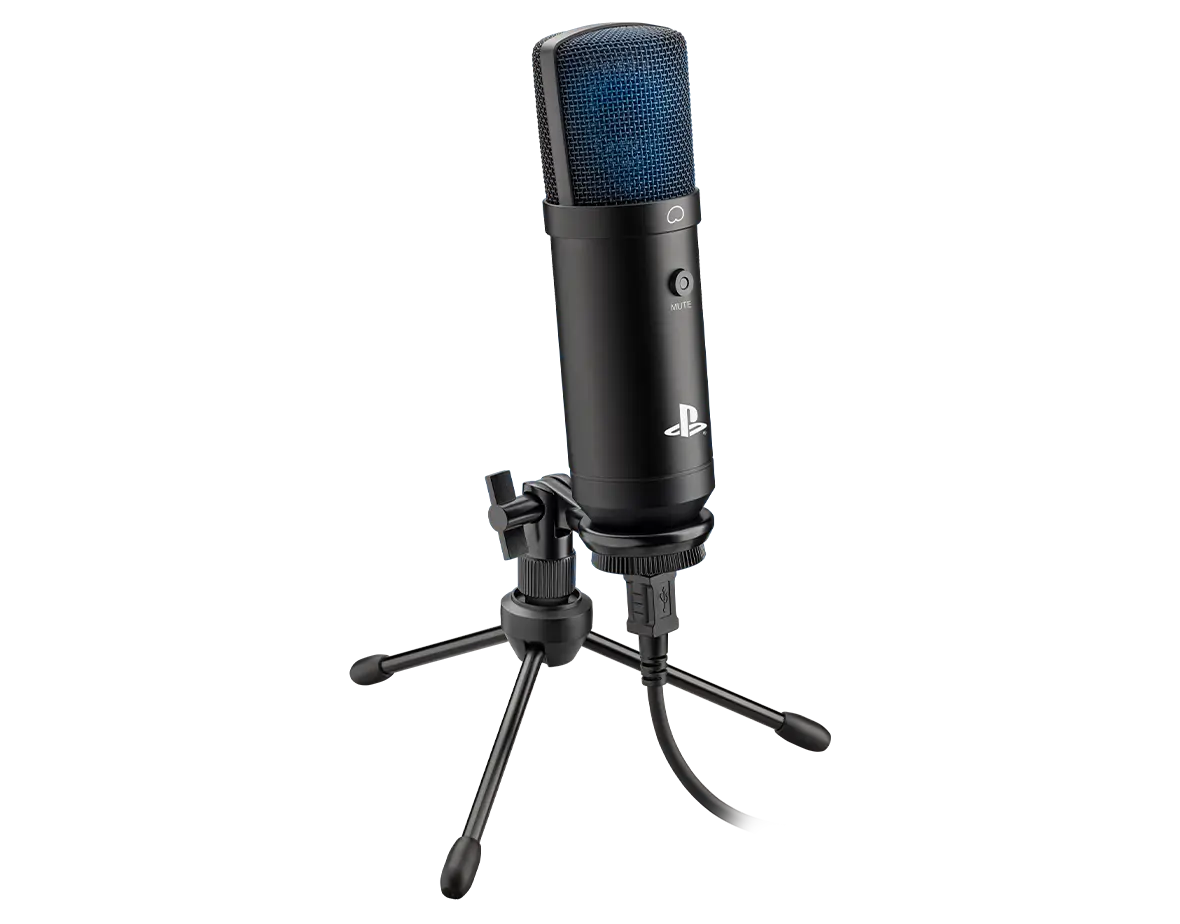
Microphone RIG M100HS
Register your product on MyNacon for quick access to all this information.
Documents & downloads


Frequently asked questions
All features and functionalities across the two microphones are identical. The only differences are the colour and the fact that the white version is licensed by PlayStation.
Plug the microphone to one of the USB ports on your system (PC, PlayStation 4 or PlayStation 5). The system will recognise it after approximately five seconds. If this is not the case, unplug the microphone and use a different USB port.
To check the microphone's status and adjust the volume level:
- On PC, go to System > Sound > Input and set RIG M100HS as your audio input source.
- On PlayStation 4, go to Settings > Devices > Audio Devices > Adjust Microphone Level.
- On PlayStation 5, go to Settings > Sound > Microphone.
For proper microphone operation, make sure that the MUTE button is pointing towards you.
If you plug the microphone to your PC and it doesn't automatically recognise the microphone:
- On PC, go to System > Sound > Input and set RIG M100HS as your audio input source.
- On PlayStation 4, go to Settings > Devices > Audio Devices > Input Device and set RIG M100HS as your audio input source.
- On PlayStation 5, go to Settings > Sound > Microphone and set RIG M100HS as your audio input source.
If the microphone is set as the audio input source but you still don't have audio, make sure that the mute function is deactivated.
- To activate the mute function, press the MUTE button. The LED light turns red to show it is active.
- To deactivate the mute function, press the MUTE button again. The LED light switches off.
For proper microphone operation, make sure that the MUTE button is pointing towards you.
- Make sure that the symbol
on the microphone casing and the MUTE button face towards your mouth or the input audio signal.
- Put the microphone no more than 20-30 cm (8-12 inches) away from your mouth.
- To avoid interference, keep the microphone away from other audio sources.
- To decrease pop sounds and other background noises, use the foam windscreen on the microphone.