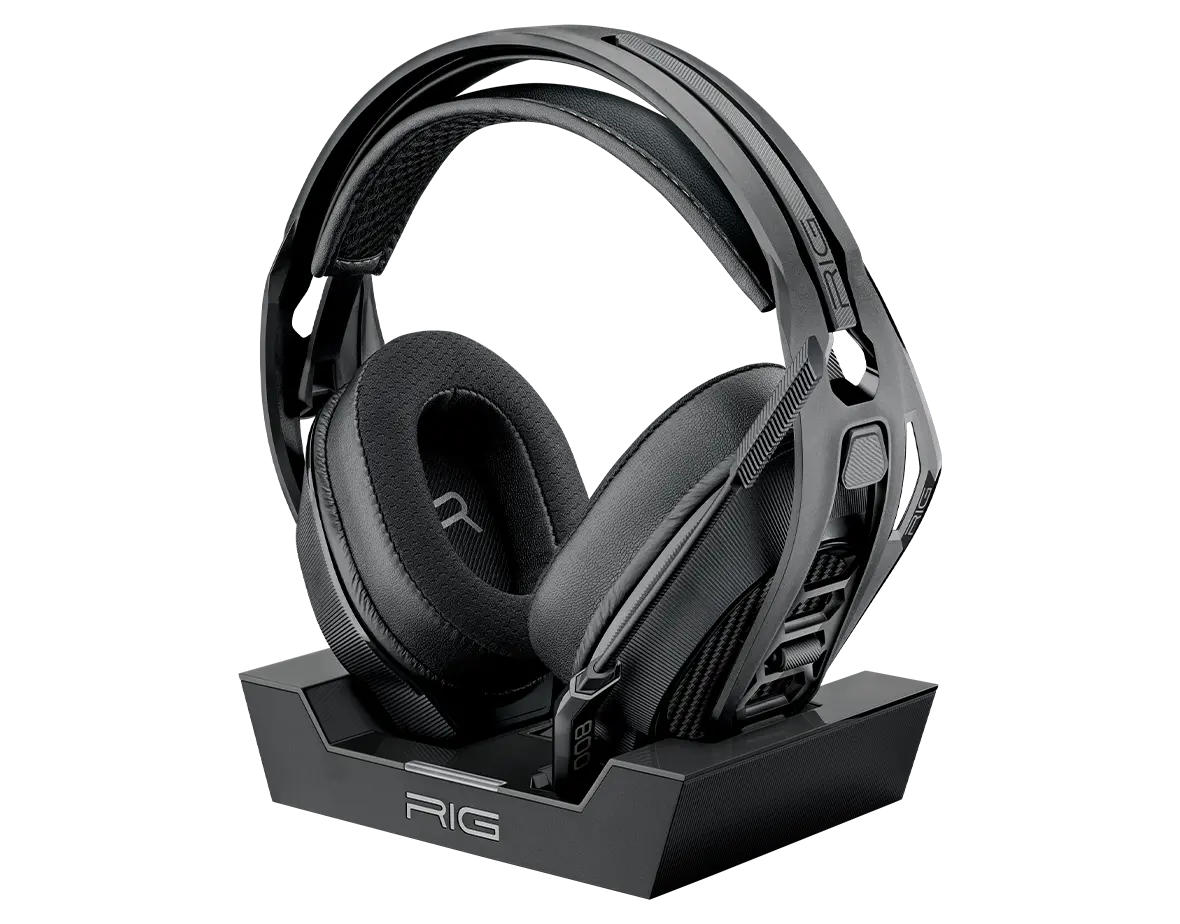
Headset RIG 800 PRO HS
Register your product on MyNacon for quick access to all this information.
Documents & downloads


Frequently asked questions
The RIG 800 HS headset is compatible with PC, PlayStation 4 and PlayStation 5. Due to circuitry differences between Xbox and PlayStation consoles, it is not compatible with Xbox consoles.
The RIG 800 PRO series headsets feature the following changes and additions:
- Improved design and finish
- Charging stand with battery level indicator
- USB-stick style 2.4 GHz RF wireless adapter
NOTE: You can either plug the adapter into the charging base and plug the base into your console/PC, or plug the adapter directly into your console/PC. - Unremovable PRO style microphone with a reinforced flip-to-mute feature
- Press-and-hold Power button instead of a slide switch
- No EQ button
Changes specific to the 800 PRO HS version:
- Separate master volume dial
- Mic monitoring dial
To balance game/chat audio, go to the PC or PlayStation's audio settings.
PlayStation 4
PlayStation 5
RIG 800 older versions
On older versions of the RIG 800 headset, you must adjust the mic monitoring on your console.
On Xbox
- Assign the headset to the correct user profile.
- On the controller, press the Nexus button.
- Go to Quick Settings > Profile & System > Audio > Mic Monitoring.
- Adjust the mic monitoring level to your preference.
On PlayStation 4
- On the controller, press the PS button.
- Go to Quick Menu > Sound/Devices.
- Use the Sidetone volume slider to adjust the mic monitoring.
If you are still having issues, contact the support team.
RIG 800 new versions
On new versions of the RIG 800 headset, there are three levels of mic monitoring:
- Normal: The default level of mic monitoring.
- High: Increases the level of mic monitoring.
- None: Removes the mic monitoring.
- Power on the headset.
- Push the EQ button and hold for three seconds. You can hear three low tones.
- Release the button. You set the mic monitoring to High.
- Push the EQ button and hold for three seconds. You can hear one low tone.
- Release the button. You set the mic monitoring to None.
- Push the EQ button and hold for three seconds. You can hear two low tones.
- Release the button. You set the mic monitoring to Normal.
- Speak into the microphone to get an idea of the volume.
Repeat these steps to cycle through the three mic monitoring settings.