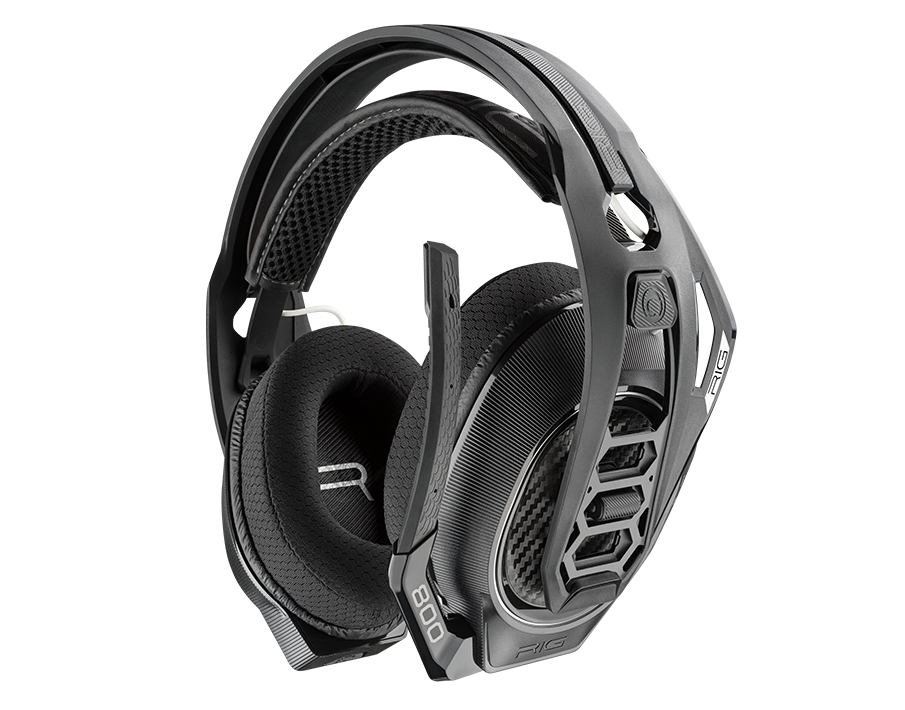
Headset RIG 800LX
Register your product on MyNacon for quick access to all this information.
Documents & downloads


Frequently asked questions
Xbox One
PC / Mac
Dolby Atmos is compatible with the following RIG headsets:
- RIG 300 PRO HC
- RIG 400 Atmos
- RIG 400 PRO HC
- RIG 400 HX
- RIG 500 PRO HA
- RIG 500 PRO HA GEN2
- RIG 500 PRO HC
- RIG 500 PRO HC GEN2
- RIG 500 PRO HS
- RIG 500 PRO HX
- RIG 600 PRO HX
- RIG 700 PRO HD
- RIG 700 PRO HX
- RIG 800 PRO HD
- RIG 800 PRO LX
- RIG 800 PRO HX
- RIG 900 MAX HX
- RIG R5 PRO HC
- RIG R5 PRO HX
Dolby Atmos for Headphones is compatible only with the following platforms:
- Xbox One
- Xbox Series X|S
- PC (Windows 10 or Windows 11)
Dolby Atmos Surround Sound is not compatible with PlayStation 4 or PlayStation 5.
- Turn off the headset.
- Plug the USB adaptor into the console or PC.
- Set the selector switch on the USB adaptor to Xbox or PC depending on the platform you use.
- Press the Pairing button on top of the USB adaptor and hold it until the LED indicator flashes red and blue.
- Turn on the headset. A voice prompt says "Headset not connected".
- Slide up the Power button and hold it until the LED indicator flashes red and blue. A voice prompt says "Pairing".
If the pairing succeeded, a voice prompt says "Headset connected" and the LED indicator on the USB adaptor changes to purple.
For more information, you can watch the following video tutorial:
Here are several possible solutions to fix the audio on your RIG 800 LX headset:
- Turn on your Xbox and sign into your profile.
- Make sure that the switch on the dongle is set to Xbox.
-
Turn off the headset and disconnect the dongle from the console. Wait 15 seconds and connect the dongle again. The LED turns red.
If the LED does not turn on, try connecting it to another USB port on the Xbox.
- Turn on the headset. The LED goes from red to purple.
If the colour doesn't change, try pairing the headset again. - Turn off the headset. Press and hold the Power button on the headset until it goes into pairing mode.
- Hold down the Pairing button on the top of the dongle for some seconds. The LED starts flashing red and blue.
When the headset is connected, a "Headset assigned" message displays on your Xbox and there is a green ring around your profile picture.