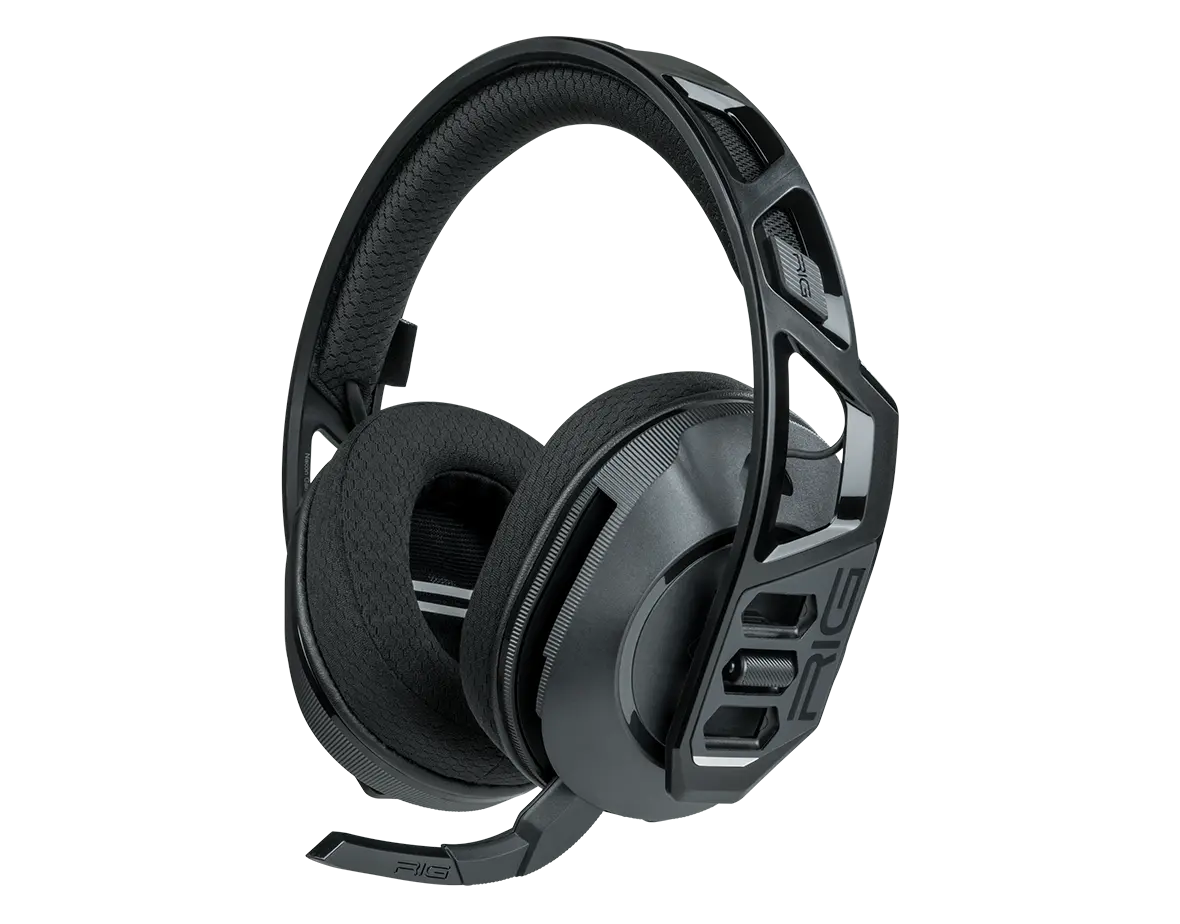
Headset RIG 600 PRO HS
Register your product on MyNacon for quick access to all this information.
Models :
Documents & downloads


Frequently asked questions
The RIG 600 PRO HS headset is compatible with the following platforms:
- PlayStation 4 and PlayStation 5
- PC
- Nintendo Switch (with a dongle)
- Android and iOS mobile devices (through Bluetooth)
Press and hold the Power button for three seconds.
You hear the voice prompt "Power On" or "Power Off".
- When the power is on, the LED lights up according to the battery level.
- When the power is off, the LED lights up in red.
There are four ways to check the battery level of your headset.
- When your RIG 600 PRO headset is connected to a mobile device and the app is open, you can see the battery level on the top right of your device screen.
- When you power on your RIG 600 PRO headset, you see the LED colour and hear a voice prompt that indicates the battery level:
- Red: "Battery Low";
- Yellow: "Battery Medium";
- Green: "Battery High".
- When your RIG 600 PRO is already powered on, press the Power button once. You hear a voice prompt that indicates the battery level and the mode that you have selected.
- Red: "Battery Low";
- Yellow: "Battery Medium";
- Green: "Battery High".
- When your RIG 600 PRO is being charged, the LED indicates the battery level:
- Red: Low battery;
- Yellow: Medium battery;
- Green: High battery;
- Off: Full battery.
- Power on the headset.
- Press the Power button once. A voice prompt indicates which mode is selected.
- Press the Mode button once to cycle from:
- Dual mode to Game mode;
- Game mode to Bluetooth mode;
- Bluetooth mode to Dual mode.
- Press the Mode button twice to do the opposite and cycle from:
- Game mode to Dual mode;
- Dual mode to Bluetooth mode;
- Bluetooth mode to Game mode.
PlayStation 4 / PlayStation 5
Connect the dongle to the USB-C port of your PlayStation 5. You can also use the USB-C to USB-A adaptor cable supplied.
Nintendo Switch
Connect the dongle to the USB-C port of your Nintendo Switch handheld console.
NOTE: To connect to the dock, you must use a compatible USB-C to USB-A adaptor (not included).