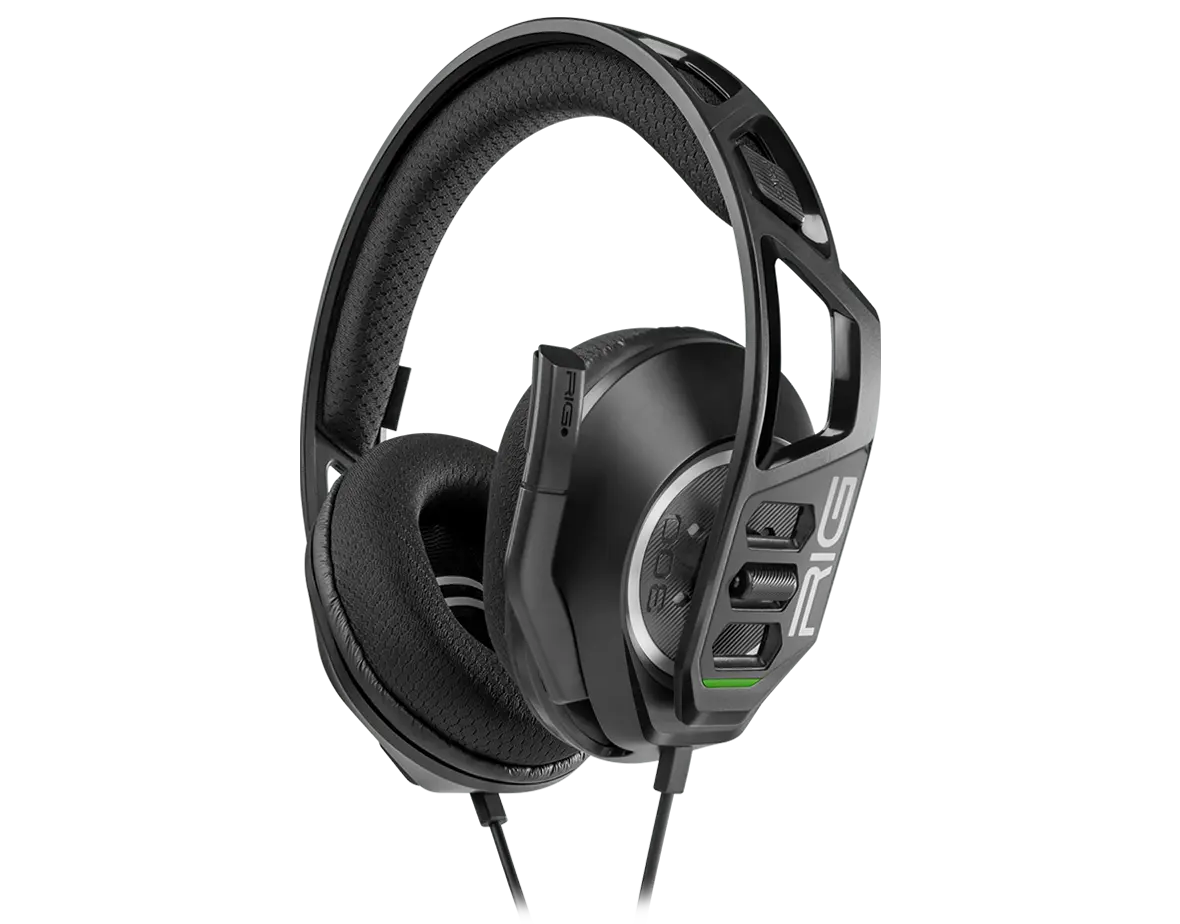
Headset RIG 300 PRO HX
Register your product on MyNacon for quick access to all this information.
Models :
Documents & downloads


Frequently asked questions
PlayStation 4
PlayStation 5
Xbox One
PC / Mac
- Remove the ear cups from the headband frame.
- Put one end of the new speaker cushion material into the plastic groove on the ear cup and hold it in place.
- Pull and stretch the rest of the speaker cushion around the groove until the material is fully in it. To make sure that the material is correctly in place, give the speaker cushion a light turn.
- Put the ear cups back into the headband frame.
- Make sure that the ear cups are correctly in place. When you extend the microphone, it must be pointing away from the RIG logo on the headband frame and not towards it.
The only way to reset this headset is to disconnect and reconnect it.
- Insert the headset wire into the device or controller correctly. If necessary, unplug it and plug it back in.
- When the wire is correctly inserted into the controller port, you see the Audio option in the Settings menu.
- If it is not recognised, there can be a problem with the controller's headset port. Test another controller.
- Test the headset with another source that has a headset connection, like a mobile phone, a tablet or a laptop.
- If you are still having issues getting stereo sound, contact the support team.
Check the basic connections
PlayStation 4 / PlayStation 5
- Make sure that you inserted the headset wire into the controller correctly.
- Slide the Mute switch down to hide the red colour.
- Make sure that your microphone is flipped down and that the tip is pointing to the corner of your mouth.
- Press the PS button and go to Settings > Devices > Audio Devices > Adjust Microphone Level.
- Make sure that the headset microphone is set to On.
Xbox
- Make sure that you inserted the headset wire into the controller correctly.
- Slide the mute switch down to hide the red colour.
- Make sure that your microphone is flipped down and that the tip is pointing to the corner of your mouth.
- Press the Xbox button and go to Profile & system > Settings > General > Volume & audio output.
- Make sure that the headset microphone is set to On.
Check the headset on another device
- Plug your RIG headset into your mobile phone or any other device with a 3.5mm headset jack.
- Make a test call. If the other person can hear you, there can be an issue with your controller's headset jack. Try the headset with another controller.
- If the headset doesn't work with the other device, there can be an issue with the microphone on the headset. Contact the support team.